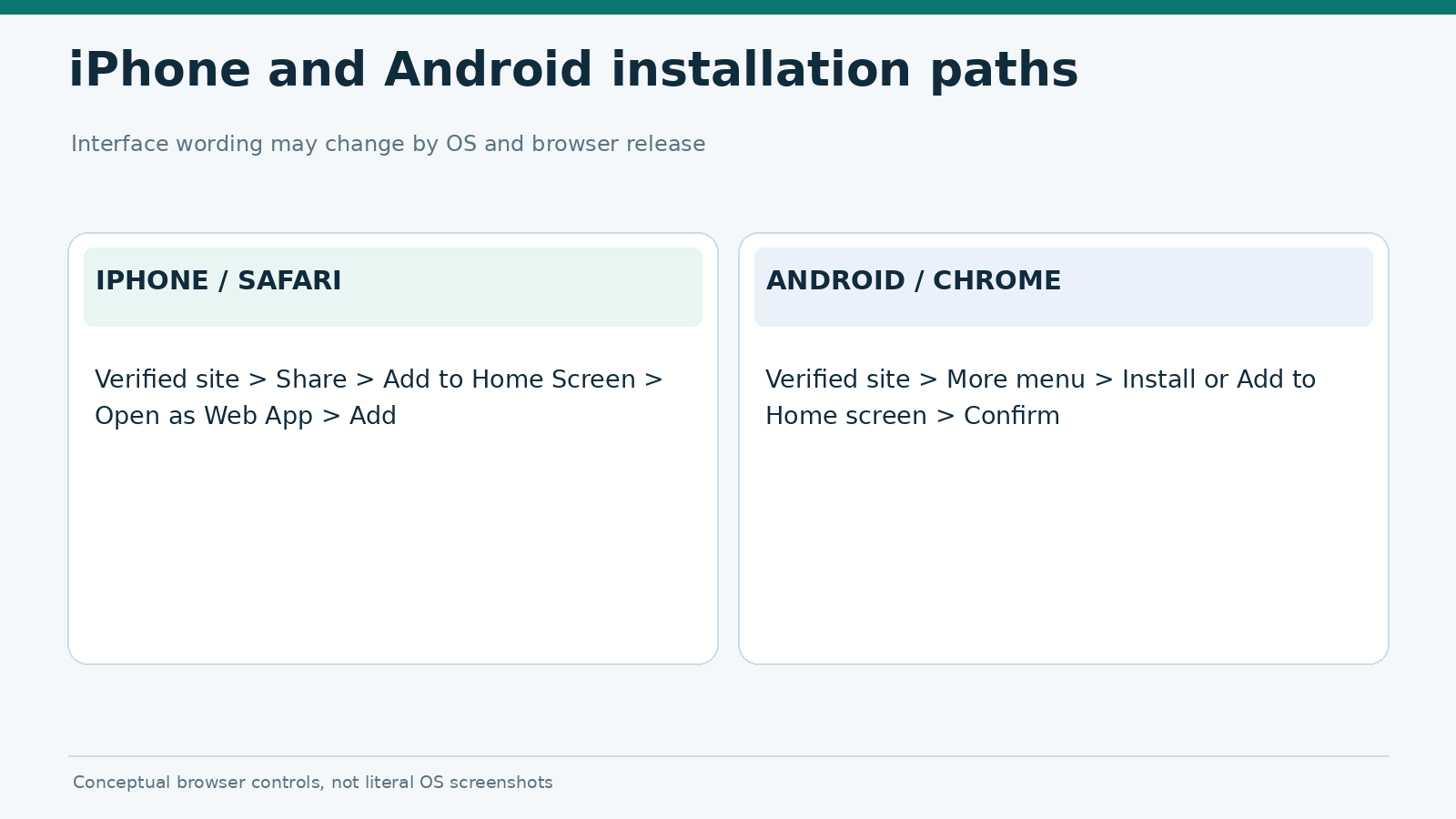
To install a gambling PWA on iPhone, open the provider’s verified site in Safari, choose Share → Add to Home Screen and enable “Open as Web App” where offered. On Android, open the site in Chrome and use the browser’s “Install” option when it appears. The result is a Home Screen icon that opens the web experience. Exact menu wording depends on browser and operating-system version.
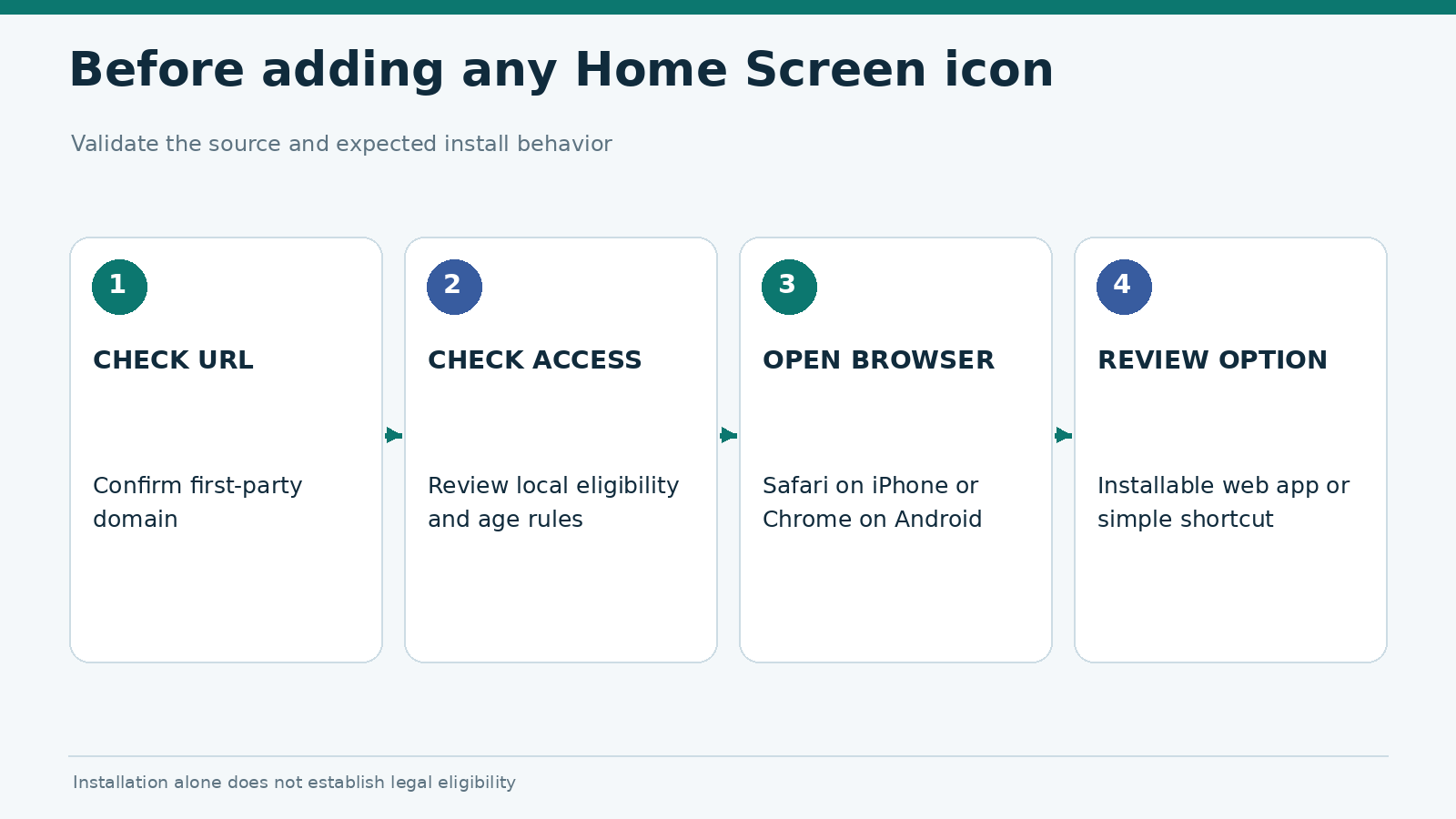
A progressive web app (PWA) is not necessarily a native casino app. Some sites support an installed, standalone web experience; others only provide a browser shortcut. Before installing anything, verify the publisher and whether the service is licensed and available for your age and location. A working icon does not establish legal eligibility to use real-money features. Our PWA vs native gambling apps comparison explains the technology; this page covers installation and removal only.
First: check the website and your browser
Open the website from a verified publisher address, not a social-media message or an unsolicited APK link. Confirm the domain, use a secure HTTPS connection and read the site’s eligibility information. Avoid granting permissions while you’re simply deciding whether the site is legitimate. PWA installation itself is not permission to use location, camera or notifications.
| Requirement | iPhone | Android |
|---|---|---|
| Typical browser path | Safari | Chrome |
| Home Screen action | Share → Add to Home Screen | Menu → Install or Add to Home screen |
| Standalone launch | “Open as Web App” where available | Installable PWA may open as an app |
| Content availability | Depends on website and applicable rules | Depends on website and applicable rules |
| Offline account information | Do not assume it is available or current | Do not assume it is available or current |
Apple documents the current Safari flow in Turn a website into an app, while Google describes Android web-app installation in Use web apps. The exact interface can change with system updates.
Install a gambling PWA on iPhone using Safari
- Open Safari on your iPhone.
- Visit the official website of the provider and confirm you have the intended domain.
- Open the Safari page menu or Share action. Depending on the Safari layout, the Share control may be immediately visible or inside the page menu.
- Scroll the actions and select Add to Home Screen. If it is absent, check Edit Actions at the bottom of the list.
- Enable Open as Web App, if that option appears and you want the app-like experience.
- Check the name and icon, then select Add.
- Return to the Home Screen and tap the new icon. Confirm that it opens the site you intended.
Apple’s iPhone Home Screen guide shows the same general flow. Do not assume older screenshots apply unchanged to newer iOS releases. Some websites may not behave as full installed PWAs even though Safari allows a Home Screen icon.
What to verify after adding the icon
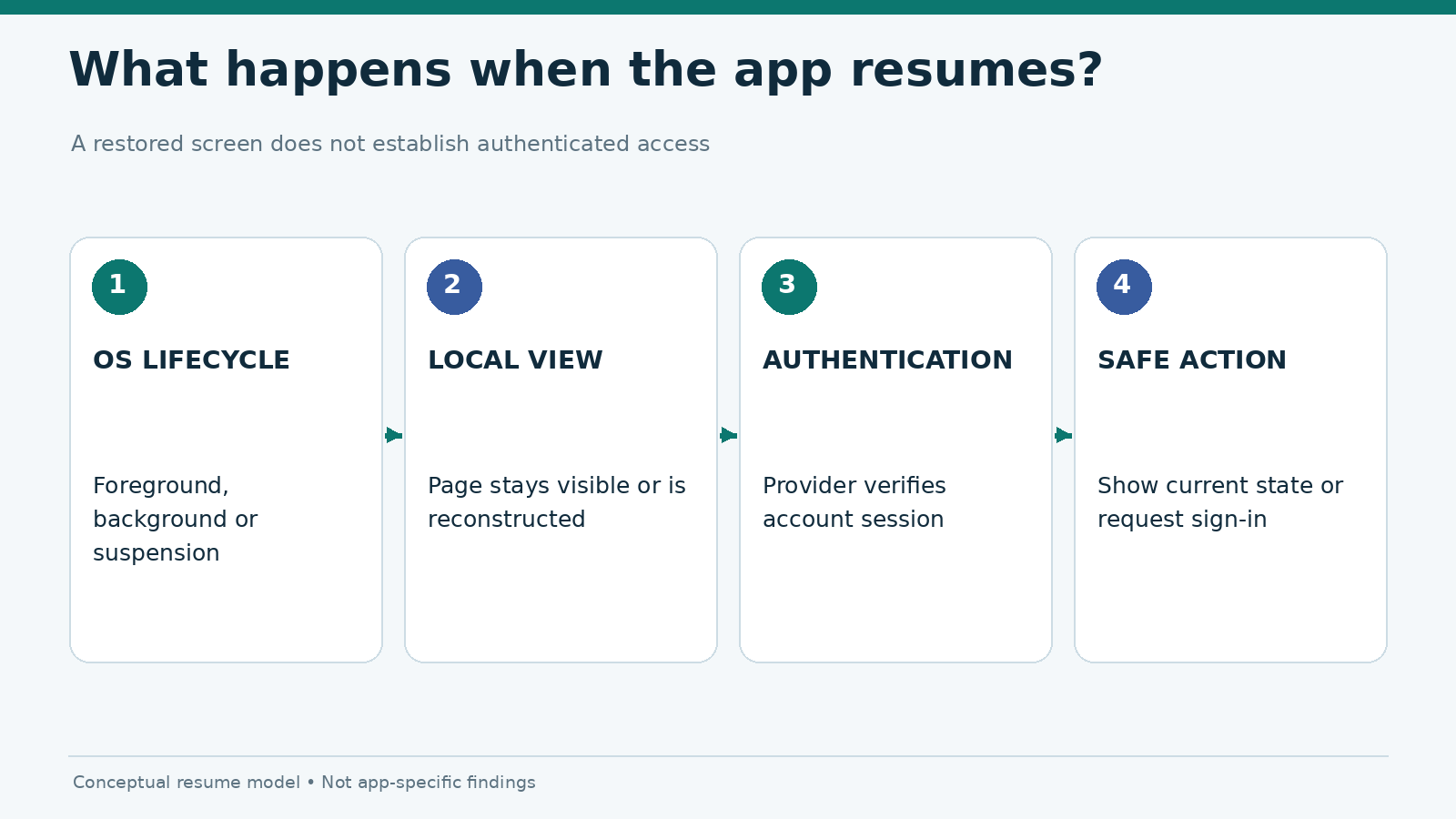
Check whether the icon launches a standalone web experience or an ordinary browser tab. Open a non-sensitive page, close the experience and reopen it. If the app requires authentication, verify that sign-in behaves as expected without entering credentials into a suspicious redirected domain. Do not assume a cached screen contains fresh account or transaction information.
If the icon opens an unexpected page, remove it and return to the verified address. You have not installed a native iOS package through this browser action.
Install a gambling PWA on Android using Chrome
- Launch Chrome on the Android device.
- Navigate to the publisher’s verified website.
- Open the three-dot More menu next to the address bar.
- Select Install if Chrome presents the site as an installable web app. The browser may instead offer Add to Home screen or a shortcut action.
- Review the displayed name and confirm installation.
- Find the icon on the Home Screen or in the launcher, then open it.
- Confirm the destination domain and whether the installed view behaves like a separate app or a browser shortcut.
Google’s Chrome help documents this flow. Android devices vary by vendor, browser, launcher and policy. An installation prompt might not appear if the site does not satisfy the browser’s installation conditions.
Why the Install button may be missing
There are several common reasons, and they do not all indicate a fault with the website.
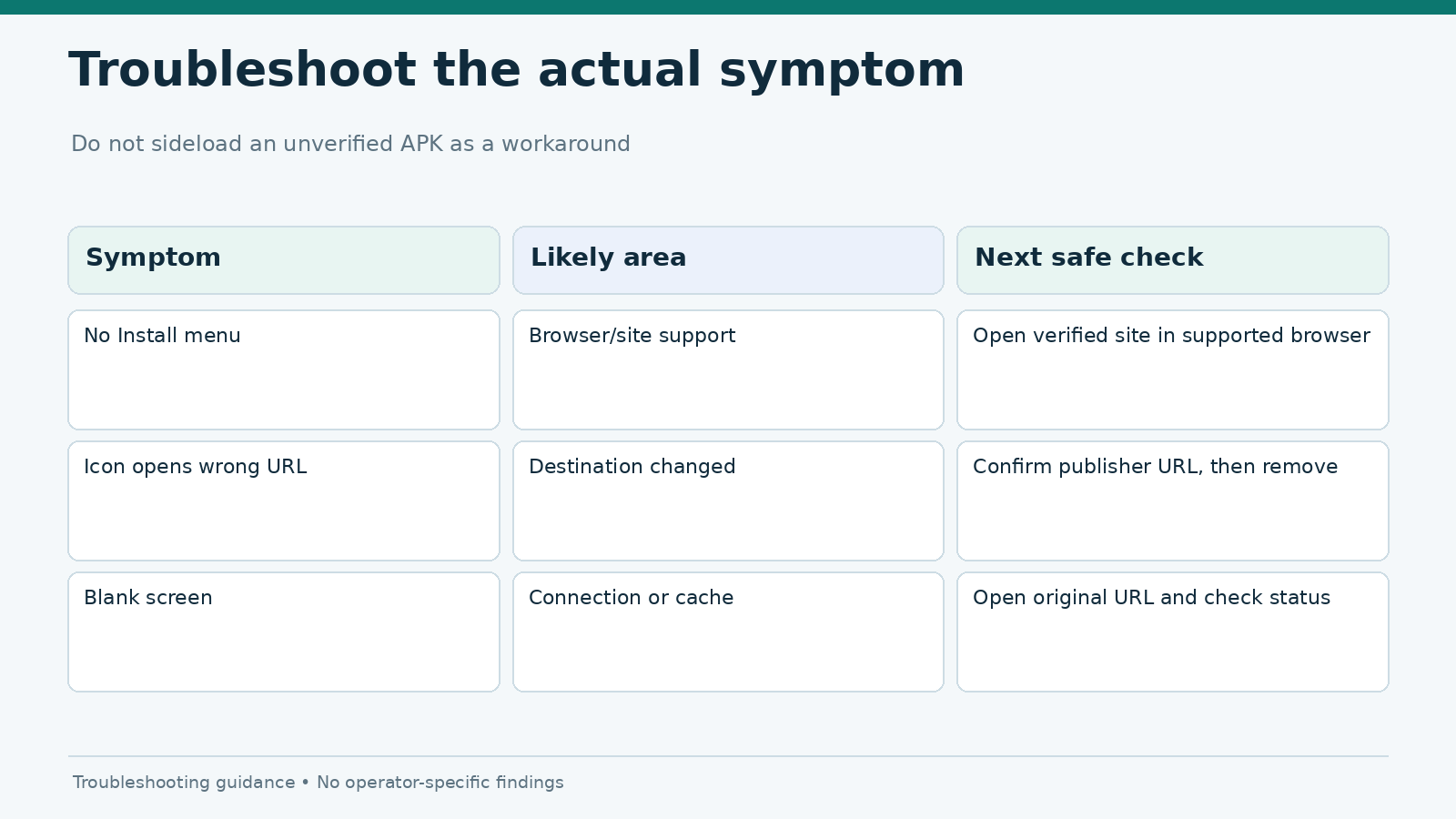
| What you see | What to check | Safe next step |
|---|---|---|
| No Add to Home Screen in Safari | Share menu and Edit Actions | Reopen the verified site in Safari |
| Chrome shows a shortcut but not Install | Site may not be installable as a full PWA | Use the shortcut if the source is trusted |
| Menu option is disabled | Browser, device management or OS restrictions | Check supported browser and device settings |
| Icon exists but opens a blank page | Connectivity, authentication or web-app configuration | Test the original website address in-browser |
| Site redirects to an app store | Publisher’s chosen distribution path | Verify the store listing and local availability |
Browser installation is different from downloading an Android APK. Do not disable device protections, sideload a package from an unverified mirror or change location settings to bypass a jurisdictional block. If a provider does not support an installable PWA, using the official browser site may be the appropriate option.
A Home Screen icon can also outlive a change in the provider’s website. If a shortcut stops working after a domain change, verify the publisher’s new address independently before editing or replacing the icon.
Notifications, permissions and sign-in
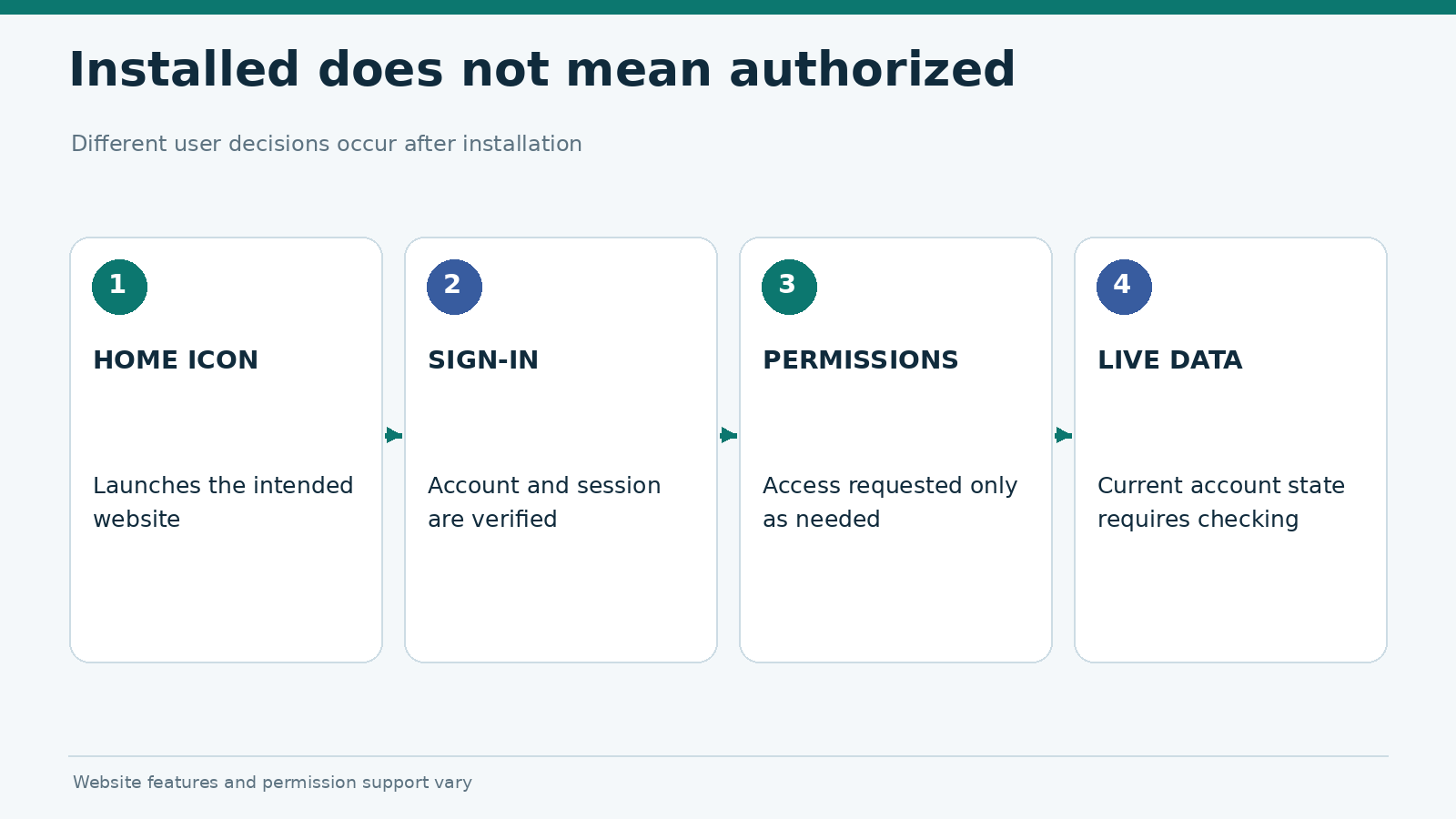
A PWA may request notifications or other device capabilities, but support varies by platform, installation state, and the site’s implementation. A home-screen installation does not automatically grant notification access. Read each permission prompt in context and decline anything unrelated to the task you are doing. See our guide to gambling app permissions for what a prompt can—and cannot—tell you.
If the web app uses a session cookie, the sign-in experience may differ between a browser tab and the installed web-app context. A provider might require you to sign in again, use multi-factor authentication or repeat an eligibility check. These are application behaviors, not universal iOS or Android rules.
Notifications deserve a separate evaluation. Our planned PWA push-notification comparison examines platform-specific delivery and permission conditions rather than installation. Do not judge a website’s notification support solely from the presence of an icon.
Remove the web app or Home Screen shortcut
On iPhone: touch and hold the Home Screen icon, choose the appropriate remove action, and confirm. The exact labels may differ between iOS versions. Removing the icon does not necessarily remove the account or data held by the website. Use the provider’s official account controls if you need to change account access.
On Android: installed web apps can usually be removed through Settings → Apps, selecting the web app and choosing Uninstall. A simple Home Screen shortcut can instead be removed through the launcher. Google documents Android web-app removal in the same Chrome help article.
Removing an icon is not the same as closing a gambling account, deleting server records or ending an active session elsewhere. For sensitive accounts, review session management, sign out where appropriate and consult the provider’s documented account-closure process.
A quick installation checklist
- Verify the domain and publisher before opening an installation menu.
- Confirm local age and geographic eligibility for real-money services.
- Use Safari on iPhone or a supported browser on Android.
- Check whether you installed a web app or created a shortcut.
- Open the icon and inspect the destination before signing in.
- Treat permission prompts independently from installation.
- Keep the removal path and account-management process distinct.
Frequently asked questions
Is a gambling PWA the same as an App Store or Google Play app?
No. A PWA is delivered through the web and can be installed or added from a supported browser. An app-store listing generally distributes a packaged application. The user interface may look similar.
Can I install a PWA if the casino is unavailable in my region?
Do not treat the ability to save a website as permission to gamble. Availability depends on local law, licensing rules, age requirements and the provider’s restrictions.
Will the PWA work without an internet connection?
Some PWAs cache selected screens or assets, but account, balance and transaction functions may require connectivity. Never rely on an offline screen for current financial or account information.
Does removing the icon delete my account?
No. Removing a web app or shortcut is separate from server-side account deletion or closure.
Verification note: These steps are based on official Apple and Google documentation reviewed on November 5, 2026. No specific gambling website or device/browser combination has been independently tested for this draft; menus should be checked against a real device before publishing market-specific screenshots.